March 29, 2026
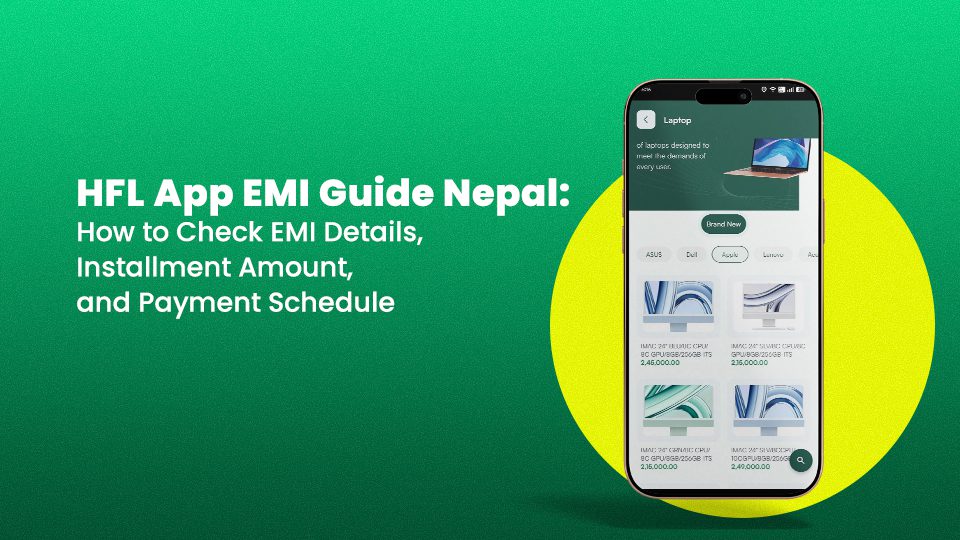
Managing your loan repayments has never been easier, but only if you know where to look. If you’ve taken a loan from Hulas Finserv Hire Purchase Ltd (HFL) and need to check EMI details, installment amounts, or your upcoming payment schedule, the HFL App is your go-to tool. Whether you’re repaying a two-wheeler loan, a laptop financing plan, or a consumer electronics loan, knowing exactly what you owe and when keeps you financially organized and stress-free with 0 सेवा शुल्क.
In this guide, we’ll walk you through everything you need to know about using the HFL App to track your EMI step by step.
The HFL App is the official mobile application of Hulas Finserv Hire Purchase Ltd, one of Nepal’s trusted hire purchase financial institutions. Headquartered in Tripureshwor, Kathmandu, Hulas Finserv offers flexible loan options for motorcycles and scooters, commercial vehicles, reconditioned cars, mobile phones, laptops, consumer electronics, and furniture.
The app is designed to give borrowers complete transparency and control over their loan accounts right from their smartphone. Instead of visiting a branch or calling customer support, you can check your EMI details, outstanding balance, and payment history anytime, anywhere. Payment records and balances are updated in near-real time after each transaction, so you can always rely on the app for an accurate view of your repayment status.
Staying on top of your EMI details is not just good practice, it’s essential financial hygiene. Here’s why:
1. Avoid missed payments: Missing an EMI installment can attract late fees and affect your repayment record. Regularly checking your payment schedule helps you plan ahead and pay on time every month.
2. Track your loan progress: Knowing how many installments remain keeps you motivated and helps you budget more effectively each month.
3. Spot discrepancies early: If there’s ever a mismatch between what you’ve paid and what’s reflected in the system, catching it early makes it easy to resolve with HFL’s support team.
4. prepayment plan: If you come into extra funds, knowing your outstanding balance helps you decide whether to make an advance payment and close the loan sooner.
Whether you’ve financed a mobile phone or gadget or taken a bike loan, keeping tabs on your EMI is always a smart move.
Before you can check EMI details, you’ll need to have the HFL App installed on your device. Here’s how to get started:
Step 1 — Download the App: Search for “HFL App” or “Hulas Finserv” on the Google Play Store (Android) or Apple App Store (iOS) and install the official app.
Step 2 — Register Your Account: Open the app and register using the mobile number linked to your HFL loan account. You’ll receive an OTP (One-Time Password) to verify your identity.
Step 3 — Log In: After registration, log in using your credentials. First-time users may be prompted to set a PIN or password for secure access.
Step 4 — Link Your Loan Account: If your loan account isn’t automatically populated, enter your loan account number found on your loan agreement or welcome letter from HFL to link it to the app.
Once your account is active, the app dashboard will display all your loan-related information in one place.
Once logged in, checking your EMI details is straightforward. Follow these steps:
Step 1: Open the HFL App and log in to your account.
Step 2: On the home dashboard, tap on “My Loans” or “Active Loans” this will display all active loans linked to your profile. (The exact label may vary slightly depending on the app version.)
Step 3: Select the specific loan you want to review, for example, your motorcycle loan, laptop loan, or electronics loan.
Step 4: Tap on “EMI Details” or “Loan Details” to see the complete breakdown of your loan.
You’ll now be able to see:
Your installment amount is the fixed sum you pay each month toward your loan. On the HFL App, this is clearly displayed on your loan detail page.
For borrowers on a 0% interest EMI plan, as is commonly offered on laptop loans and consumer electronics loans, our monthly installment is simply the financed amount divided by the number of months in your chosen tenure. Note that not all HFL loan products carry 0% interest; vehicle loans and other categories may have different interest structures based on HFL’s current policy.
Example (0% EMI — Consumer Electronics / Laptop):
No hidden charges. No fluctuating costs. The app reflects this fixed amount clearly, making it easy to budget month after month.
How to Check Your Payment Schedule
Your payment schedule, also called a repayment schedule, shows all your upcoming EMI due dates in a structured, month-by-month format. Here’s how to access it on the HFL App:
Step 1: Navigate to your loan details page as described above.
Step 2: Tap on “Payment Schedule” or “Repayment Schedule.”
Step 3: You’ll see a detailed breakdown showing:
This schedule is especially helpful when managing multiple financial commitments simultaneously. You can plan your monthly budget around these dates and ensure you never miss a payment.
The HFL App doesn’t just let you check EMI details; it also helps you initiate payments conveniently. Hulas Finserv provides a dedicated EMI Payment portal accessible both via the website and through the app. Payments are processed through supported digital wallets and platforms rather than a proprietary card gateway, keeping the process familiar and reliable for most Nepali borrowers.
Step 1: Go to the “EMI Payment” section in the app.
Step 2: Enter your loan account number and verify your identity.
Step 3: Confirm the installment amount due and select your preferred payment channel. Currently supported options include eSewa, Khalti, and ConnectIPS.
Step 4: Complete the payment through your chosen wallet or platform, and save your transaction reference number or receipt for your records.
Always pay on or before the due date to maintain a clean repayment record. Since balances update in near-real time, you should see your payment reflected in the app shortly after completing the transaction.
Here are some practical tips to help you manage your EMI smoothly:
1. Enable Notifications: Turn on app notifications, so you receive reminders ahead of your EMI due date.
2. Set a Calendar Reminder: Alongside app alerts, set a recurring reminder on your phone calendar for 2–3 days before the due date as a backup.
3. Check the App After Every Payment: Since the HFL App updates near-real time, confirm your payment has been registered in the app immediately after transacting. This gives you peace of mind and helps you catch any failed transactions quickly.
4. Keep Your Contact Info Updated: Ensure your registered mobile number and email with HFL are current, so you receive all payment reminders and account statements without interruption.
5. Contact Support Early: If you anticipate difficulty making a payment, reach out to Hulas Finserv’s support team as early as possible, rather than waiting until after you’ve missed an installment.
Managing your loan repayments in Nepal has become significantly more convenient with the HFL App. Being able to check EMI details, view your installment amount, and access your full payment schedule from your smartphone puts you firmly in control of your finances. Whether you’re repaying a vehicle loan or an electronics purchase, Hulas Finserv’s digital tools make the entire process transparent and easy to track.
If you haven’t already, download the HFL App today and take the guesswork out of your EMI journey. And if you’re still exploring loan options, visit Hulas Finserv to learn about flexible EMI plans tailored to your needs, including 0% interest options on select products.
Yes. The app consolidates all your linked accounts in one dashboard.
No. The HFL App is free to download and use for all Hulas Finserv borrowers.
Payment gateways have been integrated into the HFL App, enabling users to make payments directly through the application.
Checking Eligibility